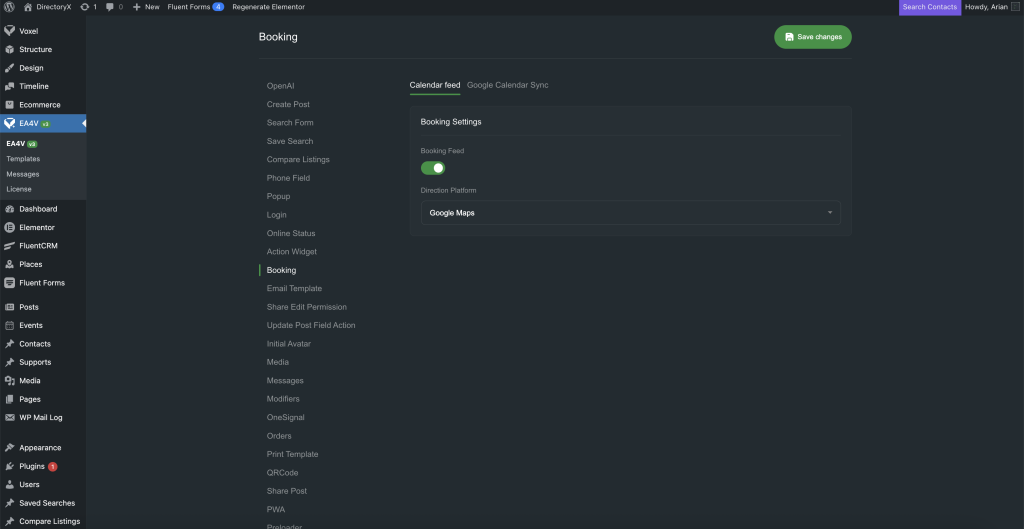
The Booking Addon adds advanced features to Voxel related to booking orders.
Calendar Feed
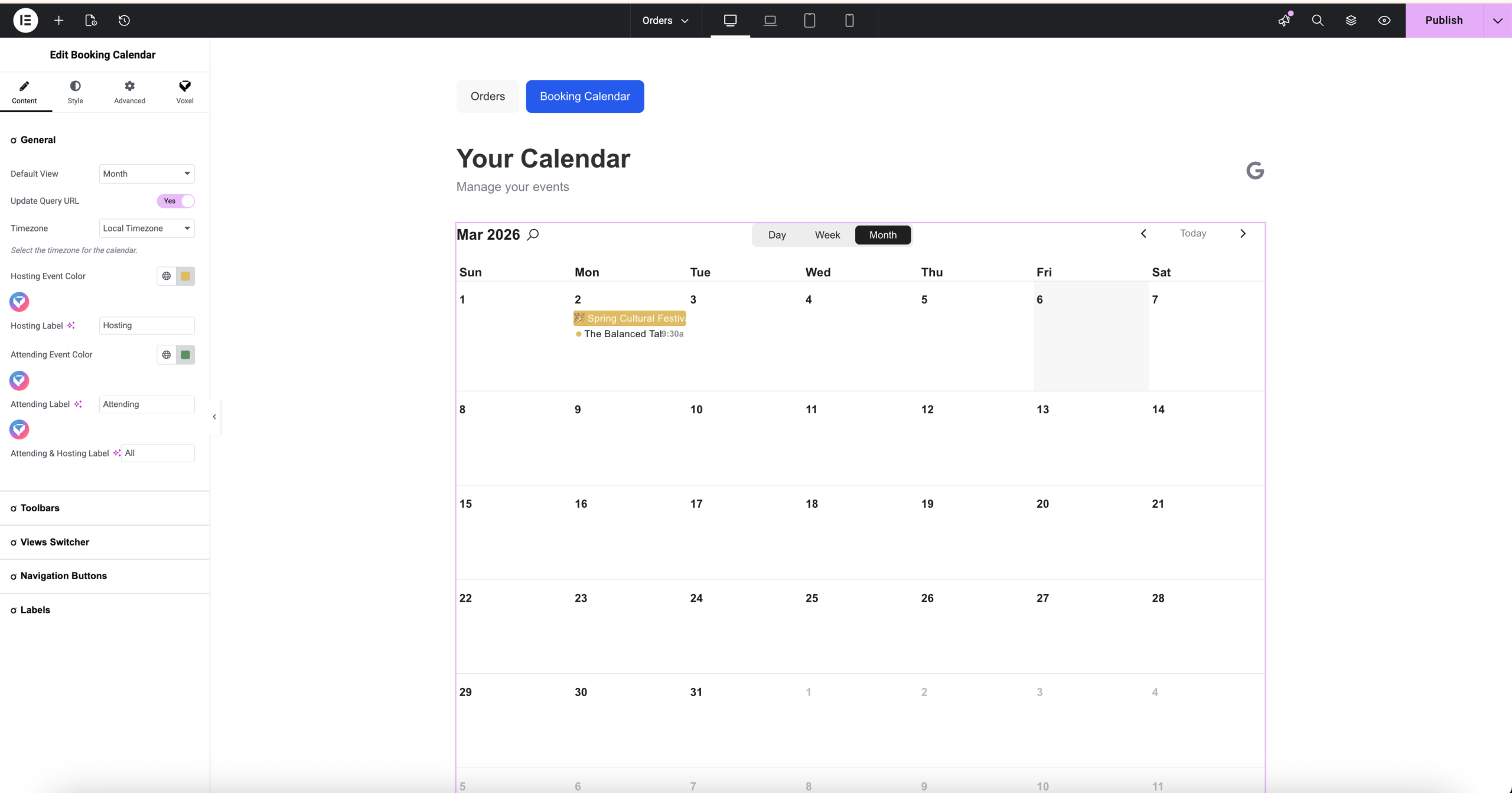
Calendar Feed is a feature that allows vendors and customers to view their booking orders in a calendar view.
When this feature is enabled, a widget called Booking Calendar will be available, allowing you to display booking orders in a calendar view. It shows which events you are going to attend and which events you are organizing.


Google Calendar Sync
Google Calendar Sync is a feature that allows users on the website to synchronize their booking orders with their Google Calendar.
When a booking order is in the approved status, an event will be created in the user’s Google Calendar.
When an order is rescheduled, the Google Calendar event will be updated to match the new schedule.
When an order is canceled, the corresponding event will be removed from Google Calendar.

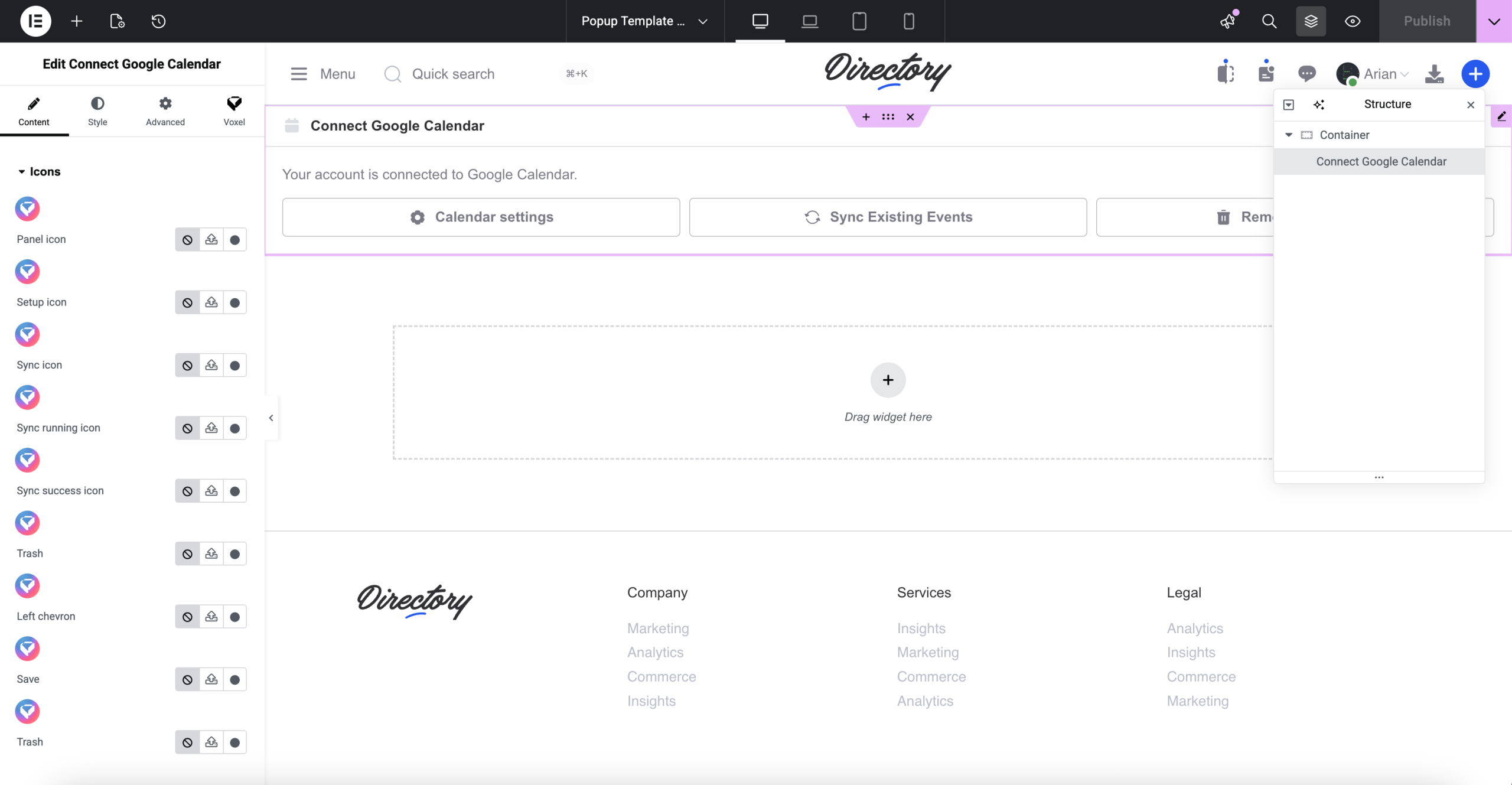
You will need to place the Connect Google Calendar widget on the website so users can connect their calendar.
Tip: You can place it inside an ea4v popup to make it look better.

Hooks and Filters
ea4v/addons/booking/booking-calendar/event-data
Type: Filter
Purpose: Runs server-side before the event list is sent to Calendar. Use it to add any extra data into extendedProps — that data becomes available in the event popup template as activeEvent.extendedProps.<yourKey>.
Parameters:
| # | Variable | Description |
|---|---|---|
| 1 | $result_item | The full event array (title, start, end, extendedProps, …) |
| 2 | $order_item | Voxel Order_Item object |
| 3 | $post | Voxel Post object for this booking |
Example:
add_filter(
    'ea4v/addons/booking/booking-calendar/event-data',
    function( array $result_item, $order_item, $post ) {

        $terms = get_the_terms( $post->get_id(), 'category' );
        $cats  = [];

        if ( $terms && ! is_wp_error( $terms ) ) {
            foreach ( $terms as $t ) {
                $cats[] = [
                    'name' => $t->name,
                    'link' => get_term_link( $t ),
                ];
            }
        }

        $result_item['extendedProps']['categories'] = $cats;

        return $result_item;
    },
    10,
    3  // must declare 3 — otherwise $order_item and $post are null
);
ea4v/addons/booking/booking-calendar/event-data/frontend/before-order-link
Type: Action
Purpose: Runs inside the popup template, just before the “Details” link. Echo any HTML here — Vue directives (v-if, v-for, :href, {{ }}) work because this PHP file compiles into a Vue component template.
Parameters:
| # | Variable | Description |
|---|---|---|
| 1 | $widget | Elementor widget instance — call $widget->get_settings_for_display() if you need widget controls |
Example:
add_action(
    'ea4v/addons/booking/booking-calendar/event-data/frontend/before-order-link',
    function( $widget ) {
        ?>
        <li v-if="activeEvent?.extendedProps?.categories?.length">
            <template v-for="cat in activeEvent.extendedProps.categories" :key="cat.name">
                <a :href="cat.link" target="_blank">{{ cat.name }}</a>
            </template>
        </li>
        <?php
    }
);
ea4v/addons/booking/booking-calendar/event-popup/content
Type: Filter
Parameters:
| # | Name | Type | Description |
|---|---|---|---|
| 1 | $content | string | The fully rendered default HTML inside <form-popup> |
| 2 | $widget | object | The Elementor widget instance |
How it works
The template now wraps all default content with ob_start() / ob_get_clean(), then passes the captured HTML through apply_filters(). Whatever the filter returns is what gets echoed inside <form-popup>.
Usage examples
Fully replace the popup content:
add_filter(
    'ea4v/addons/booking/booking-calendar/event-popup/content',
    function ( string $content, $widget ) {
        return '
            <div class="my-custom-popup">
                <h2>{{ activeEvent.title }}</h2>
                <p>{{ activeEvent.extendedProps.description }}</p>
            </div>
        ';
    },
    10,
    2
);
Prepend custom content while keeping the default:
add_filter(
    'ea4v/addons/booking/booking-calendar/event-popup/content',
    function ( string $content, $widget ) {
        $prepend = '<div class="my-banner">Custom Banner</div>';
        return $prepend . $content;
    },
    10,
    2
);